
Why Your GNSS Rover Will Not Connect to NTRIP
If your GNSS rover will not connect to NTRIP, the problem usually comes down to one of five things: no internet connection, incorrect APN or SIM setup, wrong caster address or port, bad username or password, or the wrong mount point. In some cases, the rover connects to the NTRIP caster but still will not get a fixed RTK solution because the correction format, satellite visibility, coordinate settings, or network coverage is not right for the jobsite.
This guide is written from a field surveyor’s perspective. The goal is not just to explain what NTRIP is, but to help you quickly diagnose why your rover is not connecting, what to check first, and when the issue is likely with the receiver, data collector, cellular service, or correction provider.
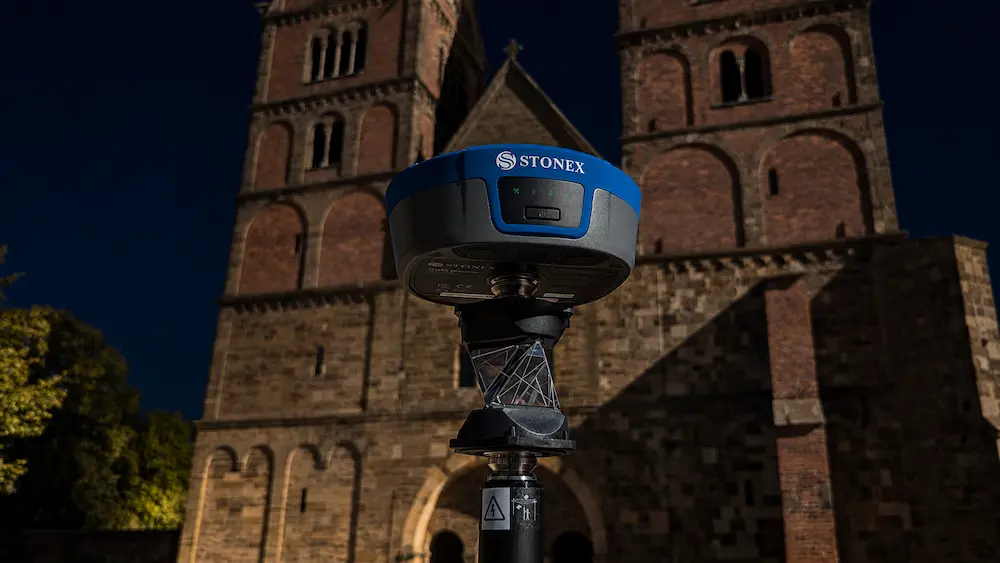
What Is NTRIP on a GNSS Rover?
NTRIP stands for Networked Transport of RTCM via Internet Protocol. In plain field terms, it is the method your rover uses to receive real time correction data over the internet instead of receiving corrections from your own local base station by UHF radio.
With a traditional base and rover setup, your base is set over a known or assumed point and sends correction data to your rover by radio. With an NTRIP setup, your rover connects to a correction service through the internet. That internet connection may come from a SIM card inside the GNSS receiver, a SIM card inside the data collector, a phone hotspot, a MiFi device, or another field modem.
A complete NTRIP setup usually needs the following:
- A GNSS rover that supports RTK corrections over NTRIP.
- A data collector or receiver interface where you can enter NTRIP settings.
- A working internet connection.
- A correction service account, such as a state CORS network, paid RTK network, or private NTRIP caster.
- The correct caster address, port, username, password, and mount point.
- A compatible correction format such as RTCM3, RTCM 3.2, or MSM.
Quick NTRIP Troubleshooting Checklist
If you are standing in the field and the crew is waiting, start here. These are the fastest checks that solve most GNSS rover NTRIP connection problems.
Connection Checks
- Open a web browser on the data collector and confirm that the internet works.
- Check cell signal strength at the jobsite.
- Restart the receiver and data collector.
- Try a phone hotspot if the receiver SIM is not connecting.
- Confirm that mobile data is active on the SIM card or device.
NTRIP Settings Checks
- Verify the caster address is typed exactly right.
- Confirm the port number with your correction provider.
- Retype the username and password manually.
- Check for extra spaces before or after the username and password.
- Select a compatible RTCM3, RTCM 3.2, or MSM mount point.
SIM and APN Checks
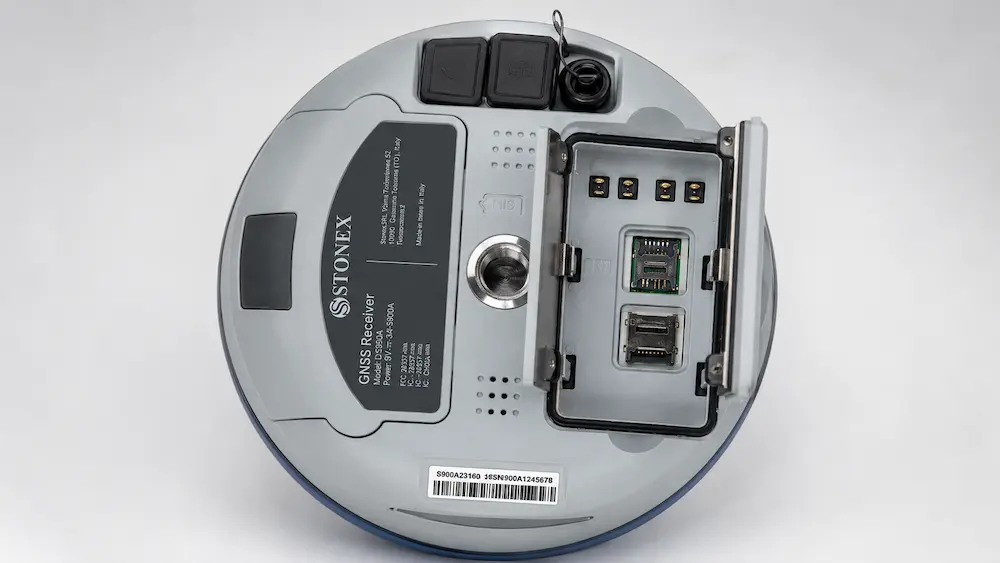
- Make sure the SIM card is fully seated in the receiver or collector.
- Confirm the SIM card is inserted in the correct orientation.
- Check that the APN is entered correctly.
- Confirm the SIM plan includes data and is not suspended.
- Test with another internet source if available.
RTK Fix Checks
- Move away from trees, buildings, vehicles, fences, and heavy equipment.
- Check satellite count and PDOP.
- Watch correction age and latency.
- Try a different mount point.
- Verify coordinate system, datum, geoid, and localization settings.
Problem 1: No Internet or Cell Service
The most basic reason a GNSS rover will not connect to NTRIP is that the rover, data collector, or field modem does not actually have internet. This can be easy to miss because the receiver may still be tracking satellites and the controller may look normal, but the NTRIP client cannot reach the caster without a working data connection.
Common signs
- The software says it cannot reach the server or correction source.
- The mount point list does not load.
- The rover keeps trying to connect and then times out.
- The correction age never starts counting because no corrections are being received.
- The collector shows weak cell signal or no data connection.
What to do in the field
If your data collector is supplying internet, open a browser and search for something simple like the weather. If the page will not load, the problem is not your NTRIP login yet. The problem is internet access. Move to a better signal area, reconnect to WiFi or hotspot, toggle mobile data, or restart the device.
If your receiver has the SIM card inside the rover, check the receiver’s network status in your field software. Make sure the receiver is actually registered on the cellular network. If it is not, move to the SIM and APN checks below.
Problem 2: SIM Card or APN Settings Are Wrong
When your rover uses an internal SIM card, the APN is one of the most important settings. APN stands for Access Point Name. It tells the receiver how to connect to the cellular provider’s data network. If the APN is missing, misspelled, or not compatible with the SIM plan, the rover may show that a SIM is installed but still fail to reach the internet.
SIM card issues to check
- The SIM card may be inserted backward or upside down.
- The SIM card may not be fully seated or locked into the receiver slot.
- The receiver may require a specific SIM size or adapter.
- The SIM card may not have an active data plan.
- The cellular provider may not have coverage in your work area.
- The receiver may not support the cellular bands needed for that carrier.
APN issues to check
- Confirm the APN directly from the SIM provider.
- Check capitalization, punctuation, and spelling.
- Leave username and password blank for APN settings unless your carrier specifically requires them.
- Restart the receiver after changing APN settings.
- Test the SIM card in another compatible device when possible.
Problem 3: Wrong NTRIP Caster Address or Port
If your internet works but the rover still cannot connect to the correction service, the next place to look is the NTRIP caster address and port.
The caster address is the server your rover connects to. The port is the specific network entry point used by that caster. Both must be entered exactly as provided by the correction provider. A single missing character, wrong number, outdated server address, or copied space can stop the connection.
What this usually looks like
- The rover has internet but says the server cannot be reached.
- The mount point list does not populate.
- The software gives a socket, server, or connection failed message.
- Other websites work on the collector, but NTRIP does not.
How to fix it
- Compare the caster address to the provider’s official setup instructions.
- Confirm whether the address should include only the host name, not http or https.
- Verify the port number.
- Check whether your provider recently changed servers.
- Ask another crew using the same service if their address and port match yours.
- Restart the receiver and field software after correcting the settings.
Problem 4: Username or Password Is Incorrect
If the rover reaches the correction service but cannot access the mount point, the issue is often the username, password, subscription status, or account permission. This is one of the easiest problems to create and one of the easiest to overlook.
Watch out for hidden spaces
When copying credentials from an email, it is common to accidentally copy a blank space before or after the username or password. Many NTRIP clients will treat that space as part of the credential. The result is a login failure even though the username and password look correct at a glance.
Credential troubleshooting steps
- Delete the username and password completely.
- Retype both manually instead of copying and pasting.
- Check capitalization.
- Look for extra spaces at the beginning or end.
- Confirm the account is active and paid.
- Confirm the account is allowed to access the selected region and mount point.
- Ask the correction provider if your account is locked or limited to a certain number of devices.
Problem 5: The Rover Connects, But the Mount Point Fails
A mount point is the specific correction stream you choose from the NTRIP caster. Think of the caster as the building and the mount point as the room you are trying to enter. You may have the right server, port, username, and password, but the rover still needs a correction stream that matches your equipment and workflow.
Mount point names vary by correction provider, but many include clues about the network type and correction format. You may see labels such as VRS, iMAX, MAX, NEAR, RTCM3, RTCM 3.2, MSM, CMR, or single base station names.
For most modern GNSS rovers, start with RTCM3, RTCM 3.2, or MSM
Modern multi constellation receivers often perform best with RTCM3 or MSM style correction streams because they can support newer message types and more GNSS signals. If you select an older or incompatible correction format, the rover may connect but struggle to initialize, float for too long, or never get a reliable fixed solution.
| Mount Point Type | What It Usually Means | When to Use It |
|---|---|---|
| RTCM3 | A common modern RTCM correction stream. | Good starting point for many survey grade RTK rovers. |
| RTCM 3.2 or MSM | Often supports newer multi constellation and multi signal correction messages. | Preferred when available for modern GPS, GLONASS, Galileo, BeiDou, and multi frequency rovers. |
| VRS | Virtual Reference Station network solution. | Useful inside supported RTK network coverage areas. |
| NEAR | Often connects to a nearby physical base station in the network. | Can be useful when you want a nearby single reference station stream. |
| CMR or CMR Plus | Trimble correction format. | Use when your equipment and provider specifically support or require it. |
Problem 6: Connected to NTRIP, But No RTK Fix
This is where many crews get frustrated. The rover connects to the NTRIP caster, the mount point loads, corrections are coming in, but the receiver stays autonomous, DGPS, single, or float instead of fixed RTK.
At this point, you are past the basic login problem. Now you are troubleshooting correction quality, satellite tracking, environment, configuration, and field conditions.
Common reasons your rover will not fix
- Poor sky view: Trees, buildings, vehicles, bridges, and equipment can block or reflect GNSS signals.
- Multipath: Signals bouncing off metal roofs, trucks, fences, water, and buildings can delay or corrupt observations.
- Wrong mount point: The correction stream may not support the signals your rover needs.
- High correction age: If corrections are delayed, the rover may not initialize properly.
- Weak satellite geometry: Low satellite count or poor PDOP can keep the rover in float.
- Coordinate system problems: Wrong datum, projection, geoid, or localization may create bad results even when fixed.
- Network coverage limits: You may be outside the reliable service area for the correction provider.
- Baseline or atmospheric conditions: Longer distances and difficult ionospheric conditions can affect initialization.
What to check on the data collector
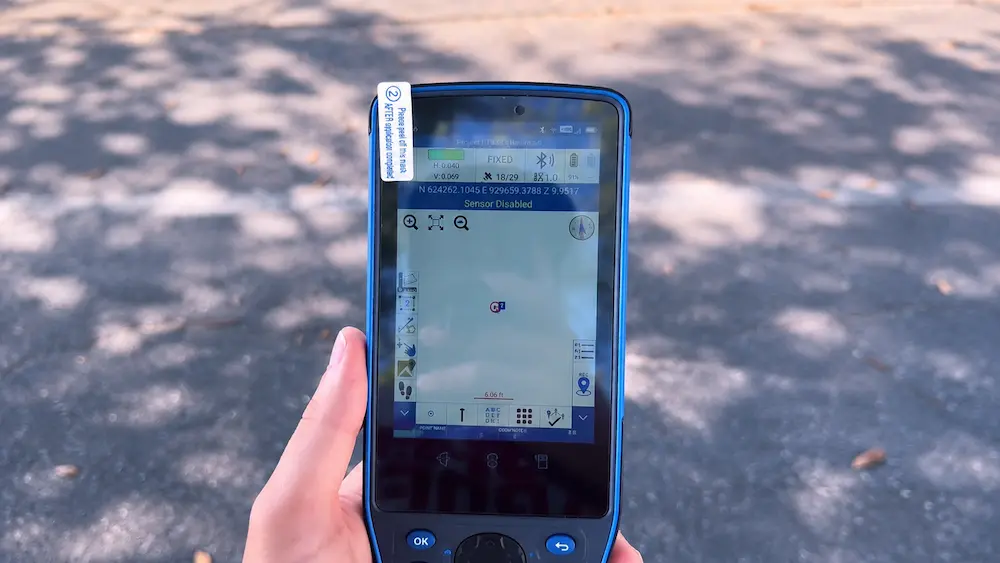
- Correction age should be low and updating.
- Satellite count should be healthy across multiple constellations.
- PDOP should be reasonable for the work you are performing.
- Rover should show RTK float before fixed in many workflows.
- The selected mount point should match the rover’s supported correction format.
- The coordinate system and geoid should match the project.
- The pole height should be entered correctly before measuring points.
A Practical Field Workflow for Surveyors
When a GNSS rover will not connect to NTRIP, avoid random button pushing. Work through the system in order. This saves time and helps you explain the problem clearly if you need support.
| Step | Question to Answer | What It Tells You |
|---|---|---|
| 1. Internet test | Can the collector or receiver reach the internet? | If not, fix cellular, WiFi, hotspot, SIM, or APN before touching NTRIP credentials. |
| 2. Caster test | Can the rover reach the NTRIP server? | If not, check caster address, port, firewall, provider outage, or network service. |
| 3. Login test | Can the account authenticate? | If not, retype username and password, confirm account status, and check permissions. |
| 4. Mount point test | Can the rover select and receive a correction stream? | If not, choose a compatible mount point or contact the correction provider. |
| 5. RTK status test | Does the rover move from float to fixed? | If not, check sky view, correction format, satellite geometry, correction age, and coordinate setup. |
| 6. Control check | Does the rover check correctly on known control? | Even with a fixed solution, verify before collecting production shots. |
When to Call Your Dealer or Correction Provider
Some NTRIP problems can be solved in the field. Others need help from your equipment dealer, software support, cellular provider, or correction network provider.
Call your correction provider when:
- Your internet works, but the caster server does not respond.
- Your username and password fail after you manually retype them.
- Your account may be expired, locked, or not authorized for the region.
- The mount point list is missing or different than expected.
- Other crews using the same network are also having issues.
Call your equipment dealer when:
- The receiver will not recognize a known active SIM card.
- The SIM slot may be damaged.
- The rover connects with a hotspot but not with the internal modem.
- The field software will not save NTRIP settings.
- The receiver firmware or software may need an update.
- You are unsure which correction format or mount point is best for your receiver.
Need GNSS Rover Help or Survey Equipment?
SiteSurv USA helps surveyors find the right field equipment, accessories, and support for real world jobsite conditions. Whether you are comparing GNSS rovers, data collectors, tripods, prism poles, field supplies, or survey accessories, we can help point you in the right direction.
Shop GNSS Equipment Shop Data Collectors View Weekly SalesFAQs About GNSS Rovers and NTRIP
Why will my GNSS rover not connect to NTRIP?
Your GNSS rover may not connect to NTRIP because it has no internet connection, the SIM or APN settings are wrong, the caster address or port is incorrect, the username or password is wrong, the subscription is inactive, or the selected mount point is not compatible with your receiver.
What should I check first when NTRIP will not connect?
Check internet first. If the data collector is supplying internet, open a browser and confirm that a webpage loads. If the receiver has the SIM card, check the receiver’s cellular status and APN settings. Once internet is confirmed, check the caster address, port, username, password, and mount point.
Why does my rover connect to NTRIP but not get a fixed RTK solution?
If your rover connects but will not fix, the issue may be poor sky view, multipath, high correction age, weak satellite geometry, wrong correction format, wrong mount point, or coordinate system problems. Try an RTCM3, RTCM 3.2, or MSM mount point, move to open sky, and verify the rover is receiving corrections with low latency.
What is a mount point in NTRIP?
A mount point is the specific correction stream you select from the NTRIP caster. Different mount points may use different correction formats, network methods, regions, or reference stations. Choosing the wrong mount point can prevent the rover from connecting or getting a reliable RTK fix.
Which NTRIP mount point should I use for a modern GNSS rover?
For many modern survey grade GNSS rovers, an RTCM3, RTCM 3.2, or MSM mount point is usually a strong starting choice. However, the correct mount point depends on your receiver, field software, correction provider, project location, and required workflow.
Can I use my phone hotspot for NTRIP corrections?
Yes, many crews use a phone hotspot to provide internet to the data collector. This can be a useful backup when the receiver SIM will not connect. Just make sure the phone has stable service, adequate data, and enough battery for the field day.
Does NTRIP work without cell service?
No. NTRIP needs an internet connection. If there is no cellular data, WiFi, hotspot, or other internet source available, the rover cannot receive NTRIP corrections. In remote areas, a local base and radio setup may be the better option.
Why does my NTRIP username and password keep failing?
The credentials may be typed incorrectly, the account may be inactive, or the account may not have permission for that mount point or region. Also check for hidden spaces before or after the username or password, especially if you copied and pasted them from an email.
What does correction age mean on a GNSS rover?
Correction age is how old the latest correction data is when the rover receives it. If correction age gets too high or stops updating, the rover may drop from fixed to float or lose RTK positioning completely.
Should I restart my receiver when NTRIP fails?
Yes. Restarting the receiver and data collector is a practical field step after confirming your settings. A reset can clear temporary connection issues, modem hangups, Bluetooth problems, or software glitches.